






PostureScribe.AI: Custom AI Prompts for SOAP Notes
On this page 14 sections
Summary
This tutorial explains how to create a custom prompt using an AI tool within the PostureScribe.AI module in PostureScreen, how to add it to the app, and test it to generate formatted SOAP notes. It is designed to help a team member build, refine, and reuse prompts for clinical documentation.
Objective#
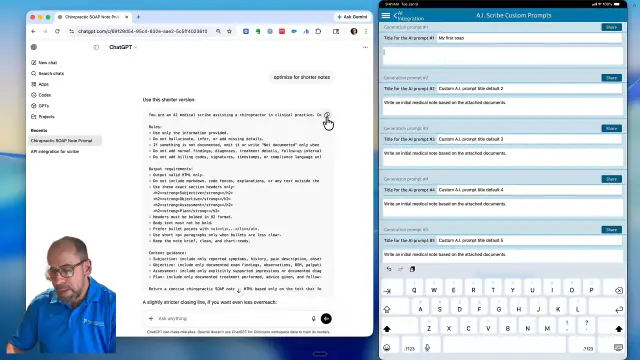
This tutorial explains how to create a custom prompt using an AI tool within the PostureScribe.AI module in PostureScreen, how to add it to the app, and test it to generate formatted SOAP notes. It is designed to help a team member build, refine, and reuse prompts for clinical documentation.
 12:02
12:02
Key Steps#
Step 1: Enable custom prompts in the app 1:44#

- Open the app and go to Settings.
- Select AI Integration.
- Turn on Show Custom Prompts.
- Confirm the custom prompt options are now visible in the app.
Step 2: Open the custom prompt area 2:00#

Click AI Custom Prompts.
Review the available prompt categories, including:
- Custom patient prompts
- Custom clinical prompts
Decide which category fits the prompt you want to create.
Step 3: Define the prompt requirements clearly 2:28#

Use an AI tool such as ChatGPT to draft the prompt.
Tell the AI exactly what you want the final output to do.
Include the following requirements in the prompt request:
- The prompt must be for a chiropractor or your specific specialty.
- The output must be a SOAP note.
- The final result must be exported in HTML format.
- Headers should be bolded and formatted as H2.
- Body text should be non-bolded.
- Use bullet points when appropriate, and paragraphs only when needed.
- The prompt should avoid hallucinations or made-up information.
Step 4: Generate and refine the prompt with trial and error 3:52#

Let the AI generate the prompt draft.
Review the output carefully.
If needed, ask the AI to make the prompt:
- Shorter
- More detailed
- Better suited to your specialty
- More structured for your preferred note style
Regenerate the prompt until it matches your needs.
Step 5: Copy the finalized prompt into the app 5:17#

- Once satisfied, copy the prompt text.
- If using Windows, you may need to move the text into Word or Google Docs first before pasting into the device.
- If using Mac, use universal copy and paste directly.
- Return to the app and create a new custom prompt entry.
- Give the prompt a clear name, such as My First SOAP Note.
- Paste the prompt into the text field and save it.
- Edit the prompt directly in the app if needed.
Step 6: Share the prompt if appropriate 6:04#

- Review the saved prompt to make sure it is readable and usable.
- If you work with other clinicians, share the prompt with them if desired.
- Keep a copy of the prompt version you like so it can be reused or improved later.
Step 7: Test the prompt on a real case 6:37#

- Open a patient case with enough documentation to test the prompt.
- If needed, clear or reset the note content to start from scratch.
- Import or load the dictation/audio content you want processed.
- Click Process with AI.
- Select your custom prompt from the custom prompt title list.
- Wait for the AI to generate the note, especially if the dictation is long.
Step 8: Review the generated SOAP note 8:57#

- Open the generated note and check the output.
- Confirm the note is formatted correctly in SOAP structure.
- Verify the content is concise, accurate, and clinically appropriate.
- Make sure the HTML formatting and headings display as expected.
Step 9: Revise and rerun the prompt as needed 9:12#

If the output is not ideal, go back and adjust the prompt.
Add specialty-specific instructions if needed, such as:
- Scoliosis-focused language
- Structural rehabilitation emphasis
- Required ICD-10 or Medicare-related details
Return to Settings > AI Integration > AI Scribe Prompts.
Edit the prompt and rerun the note generation.
Repeat until the output matches your preferred style.
Step 10: Maintain and improve the prompt over time 10:18#

Continue refining the prompt based on real-world results.
Decide whether you want notes to be:
- Shorter
- Longer
- More detailed
- More robust
Save updated versions as needed.
Treat prompt creation as an ongoing trial-and-error process.
Cautionary Notes#
- Do not rely on the AI to produce accurate clinical content without review.
- Avoid allowing hallucinated or invented information in the prompt output.
- Do not expect the first version of the prompt to be perfect; refinement is normal.
- Be careful when deleting note content during testing so you do not remove important patient data.
- If using a Windows device, copy/paste may require an intermediate document before transferring to the app.
Tips for Efficiency#
- Start with a clear specialty and note type to reduce prompt revisions.
- Ask the AI to optimize for shorter or longer notes depending on your workflow.
- Save successful prompt versions so you can reuse them later.
- Test prompts on a sample case before using them in live documentation.
- Use specific formatting instructions in the prompt to reduce cleanup after generation.
- If the output is close but not perfect, make small changes instead of rewriting the entire prompt.
Related articles
-
 PostureScreen for iPad & iPhone
PostureScreen push to custom 3rd party software
In this tutorial we will show you how to configure your PostureScreen (LeanScreen or SquatScreen to push via a specific URL to a 3rd party…
Video · 3:10
PostureScreen for iPad & iPhone
PostureScreen push to custom 3rd party software
In this tutorial we will show you how to configure your PostureScreen (LeanScreen or SquatScreen to push via a specific URL to a 3rd party…
Video · 3:10
-
PostureScreen for iPad & iPhone
Patient Summary Emails with PostureScribe.AI
How to Send Patient Summaries as an Outgoing Email This article explains how to complete a patient’s assessments and history, review and…
Video · 2:532 min read
- Knowledge Base AI Scribe SOAP Notes – Narratives – PostureScribe.AI Introduction to PostureScribe.AI: Linking up Google Drive: Your First Note: SOAP Note from Start to Finish: SOAP Note Compare to Prior… 5 videos · 50:16
-
PostureScreen for iPad & iPhone
Advanced Thoraco-Lumbar Tangents and CVA/Skull Gaze Angle
In this tutorial we will review the new assessment update that allows you to turn on additional postural mensuration for both the 2-View…
Video · 15:451 min read
-
PostureScreen for iPad & iPhone
Alternate Backdrop Calibration
In this tutorial, we’ll demonstrate how to calibrate a linear distance using a known reference measurement within the patient’s photo…
Video · 8:262 min read
-
PostureScreen for iPad & iPhone
Anatomical Landmarks for Posture Analysis
In this tutorial we will review the basic overview of the anatomical landmarks for postural assessment using PostureScreen Mobile. Please…
Video · 3:441 min read
Have a question?
Talk to the people who build PostureScreen and PostureRay.
PostureScreen support is by email. Live PostureRay support runs Monday through Friday, 9 AM–5 PM Eastern (excluding U.S. holidays).