








Patient Consent in PostureScreen (iOS): What It Is and When to Use It
On this page 8 sections
Summary
In this tutorial we explain the Patient Consent button in PostureScreen: what the two consent forms are for, when you need them, and how a client signs.
 1:55
The short answer
You do not have to use the Patient Consent button with every client. Most practices and businesses already cover consent in their own intake paperwork, so signing again in the app would be redundant. The button is there for those who want consent signed and kept in PostureScreen.
- You use PostureScribe.AI (the AI note feature): have the client sign the AI Scribe Consent. PostureScreen asks for it before your first recording.
- You need written permission to take photos or to email results, and your own paperwork does not cover it: have the client sign the Photo and Email Consent.
- Your own paperwork already covers consent, and you do not use PostureScribe.AI: you can leave the button alone.
Where to find the button
- Open PostureScreen and open a client's record.
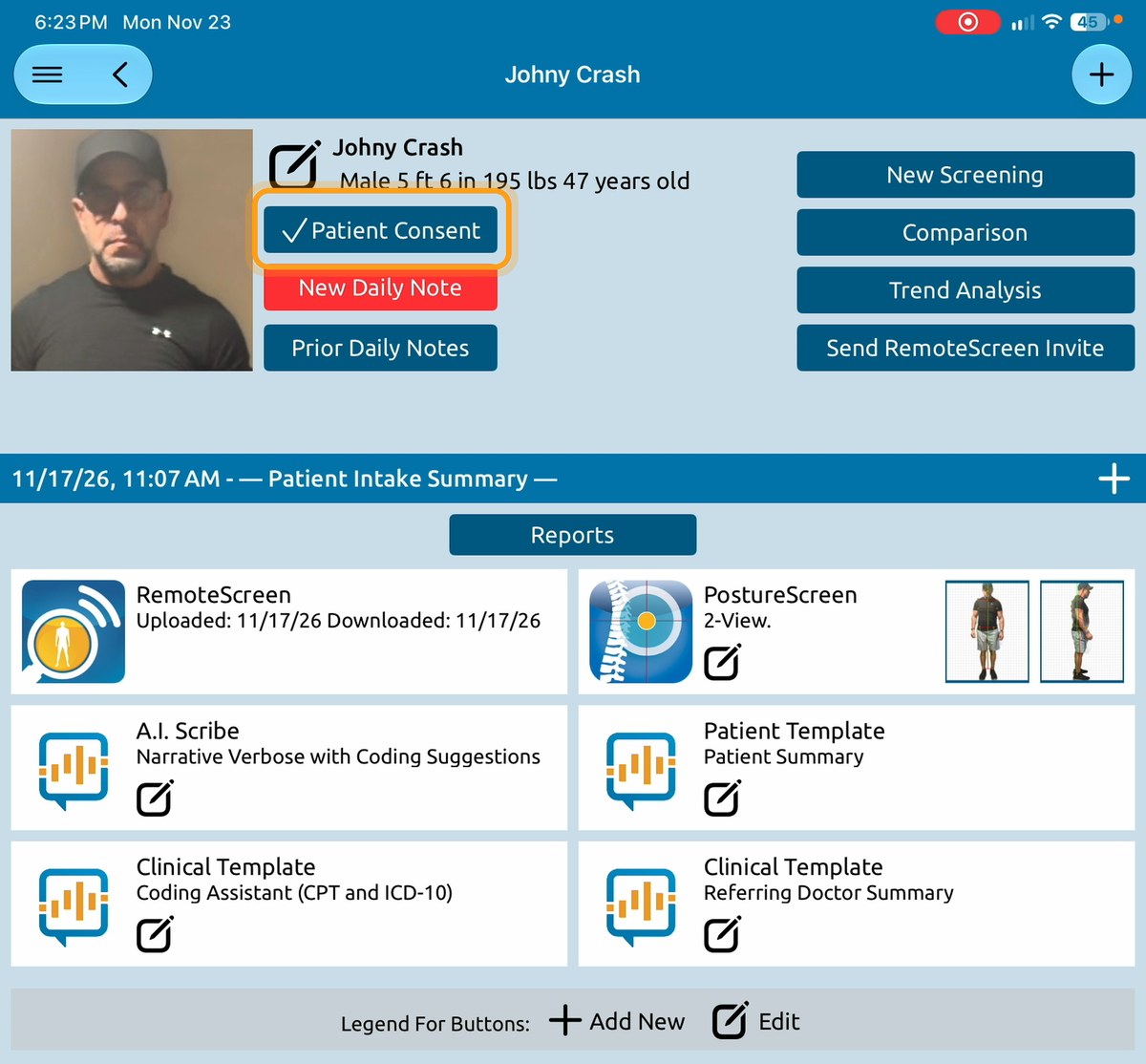
- Patient Consent is right under the client's name.
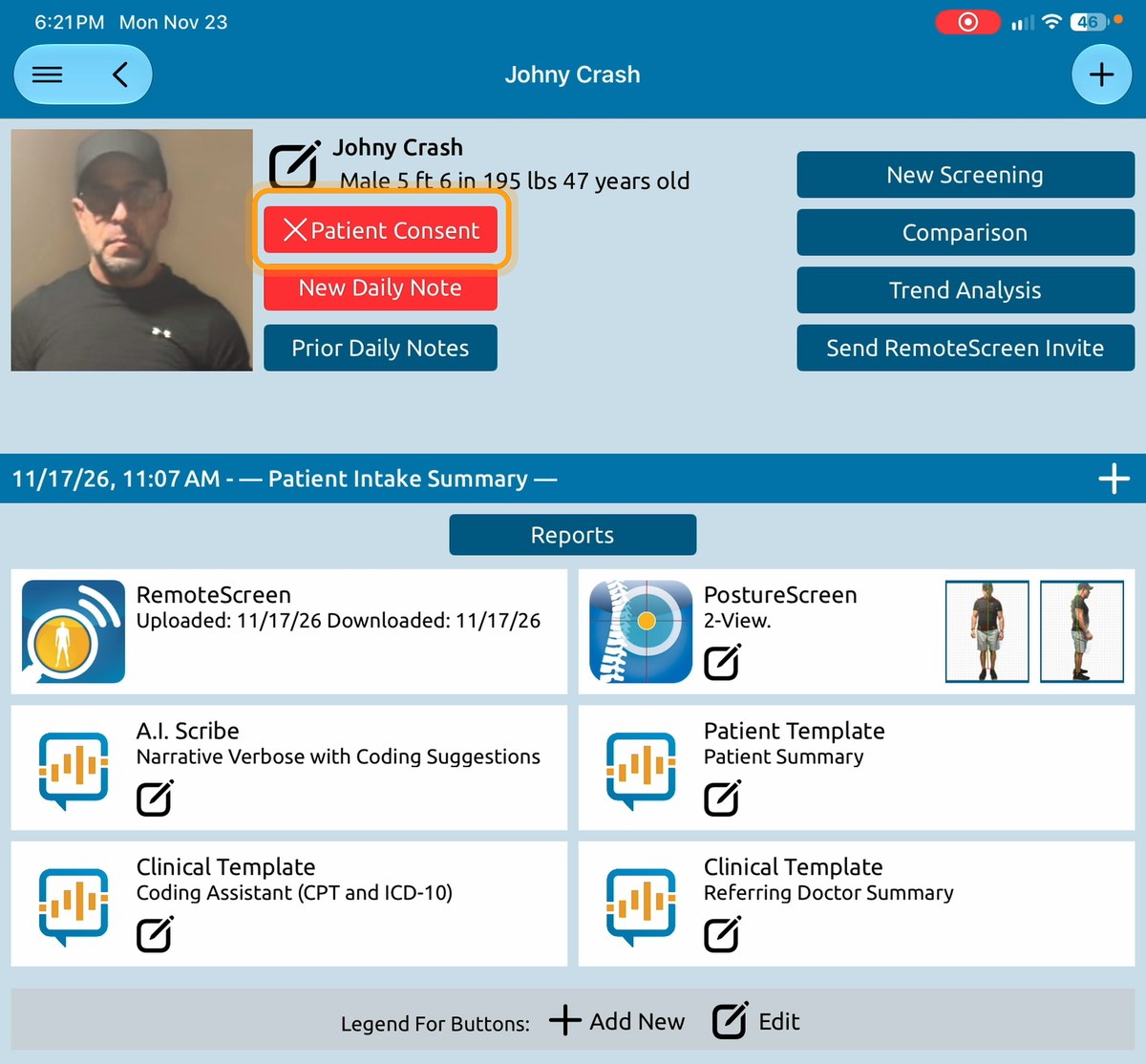
- A red button with an X only means that the forms have not all been signed in the app for this client. It is a status, not a warning.
- A check mark means both forms are signed.
The two forms
Tap Patient Consent to see the two forms.
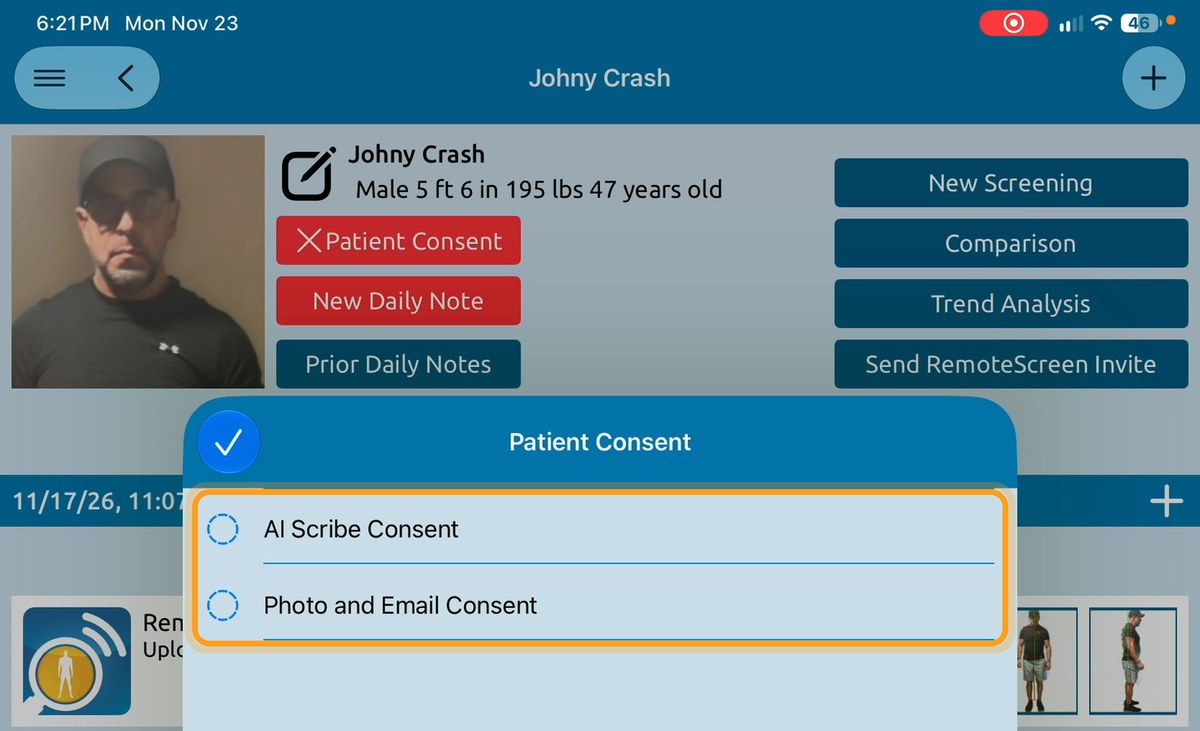
AI Scribe Consent
- This form is for PostureScribe.AI, the note feature that records the visit and drafts your note. It tells the client that the visit will be recorded and how their information is handled.
- You need it only if you use PostureScribe.AI. If a client has not signed it yet, PostureScreen opens the form when you start a recording or process a note for that client.
- If you do not use PostureScribe.AI, skip it.
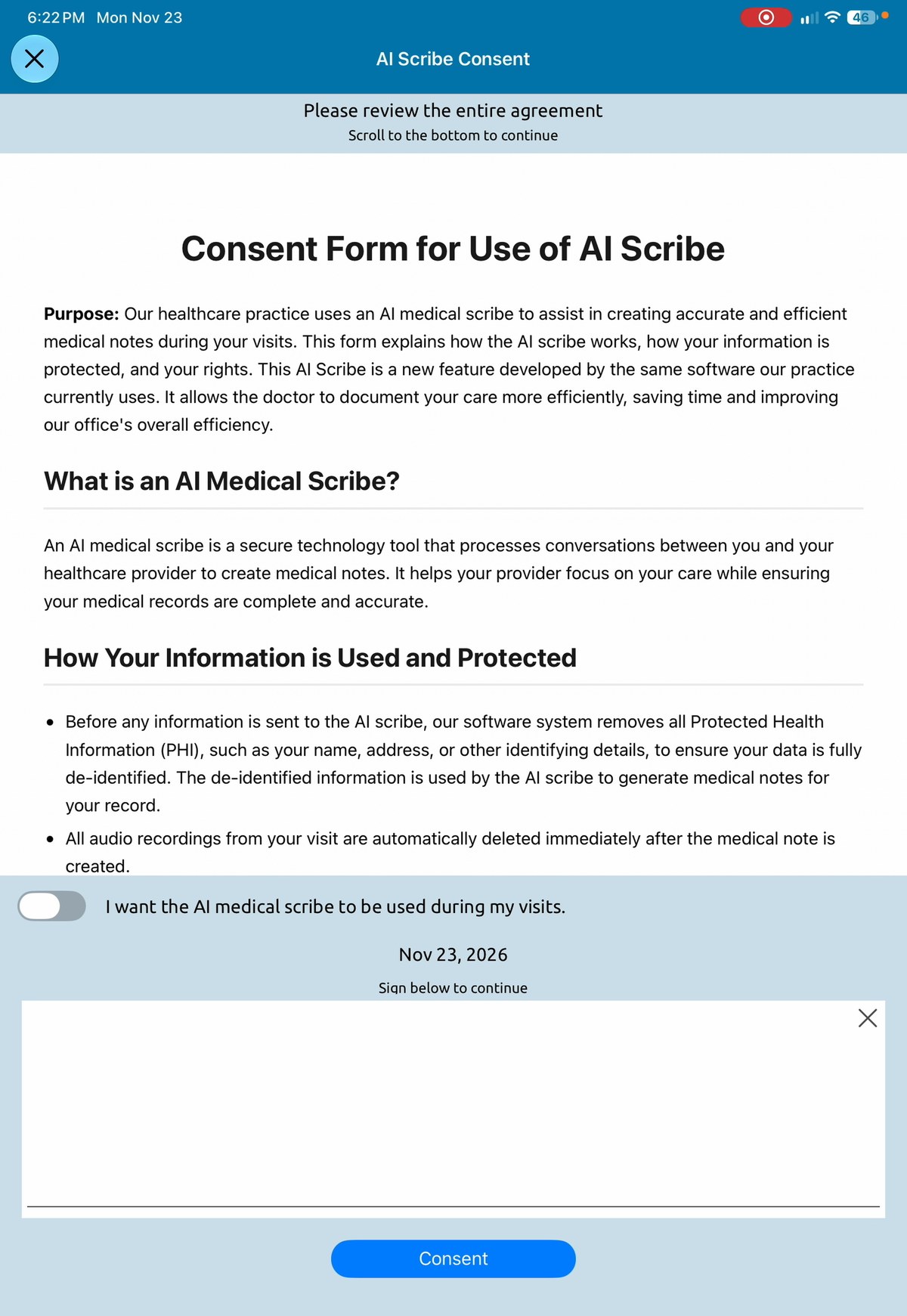
Photo and Email Consent
- This form covers two things: taking the client's photos and videos for an assessment, and sending their results by regular email.
- Some jurisdictions require written permission for these. If your own paperwork already covers them, you do not need this form as well.
- If your paperwork does not cover them, this form is an easy way to get the permission in writing and keep it with the client's record. It is also useful away from the office, at a health fair for example.
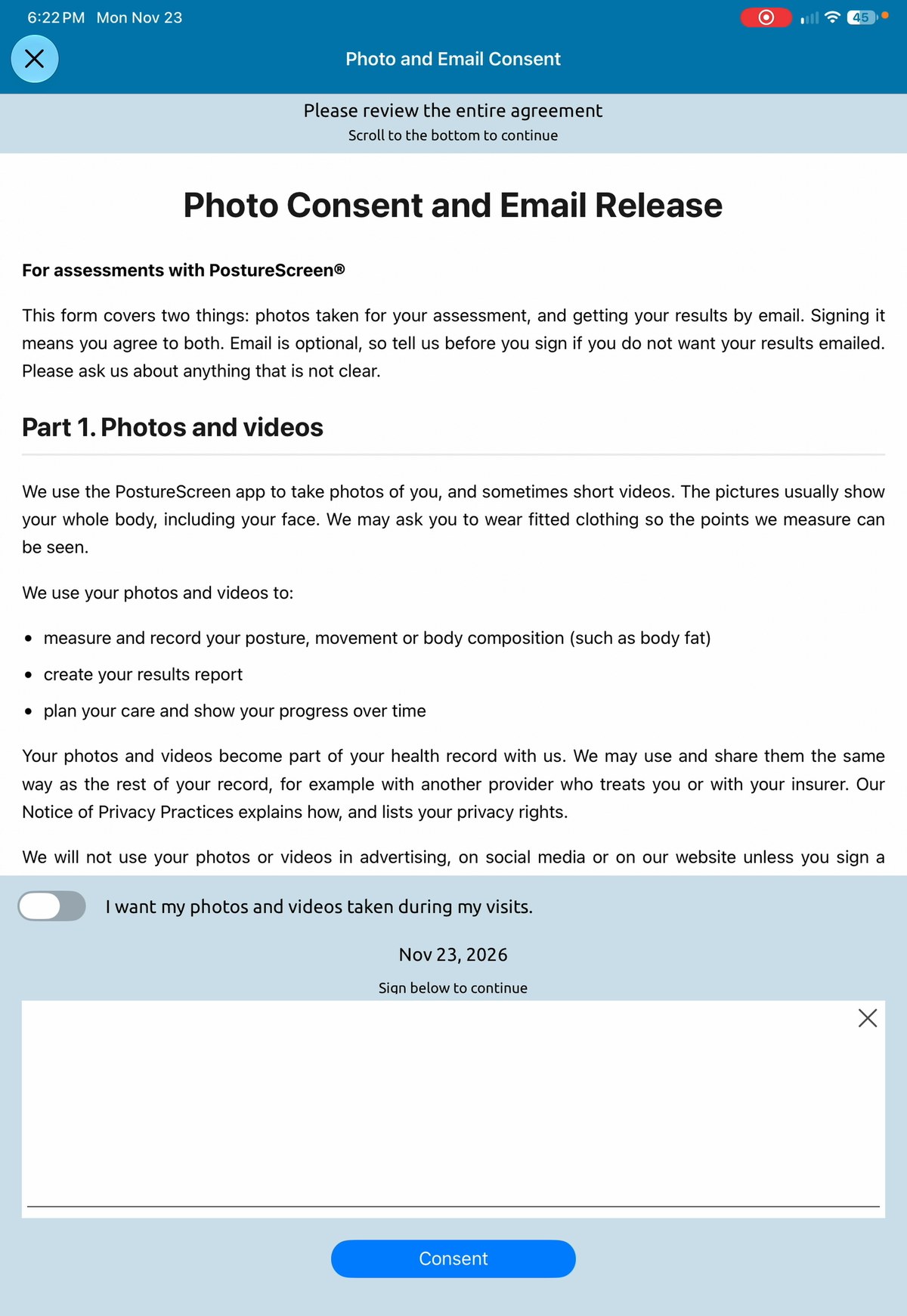
How a client signs
- Tap Patient Consent, then tap the form.
- Hand the device to your client. They read the agreement and scroll to the bottom.
- They turn on the switch next to the consent sentence.
- They sign in the signature box with a finger. The X in the corner of the box clears the signature so they can start again.
- They tap Consent.
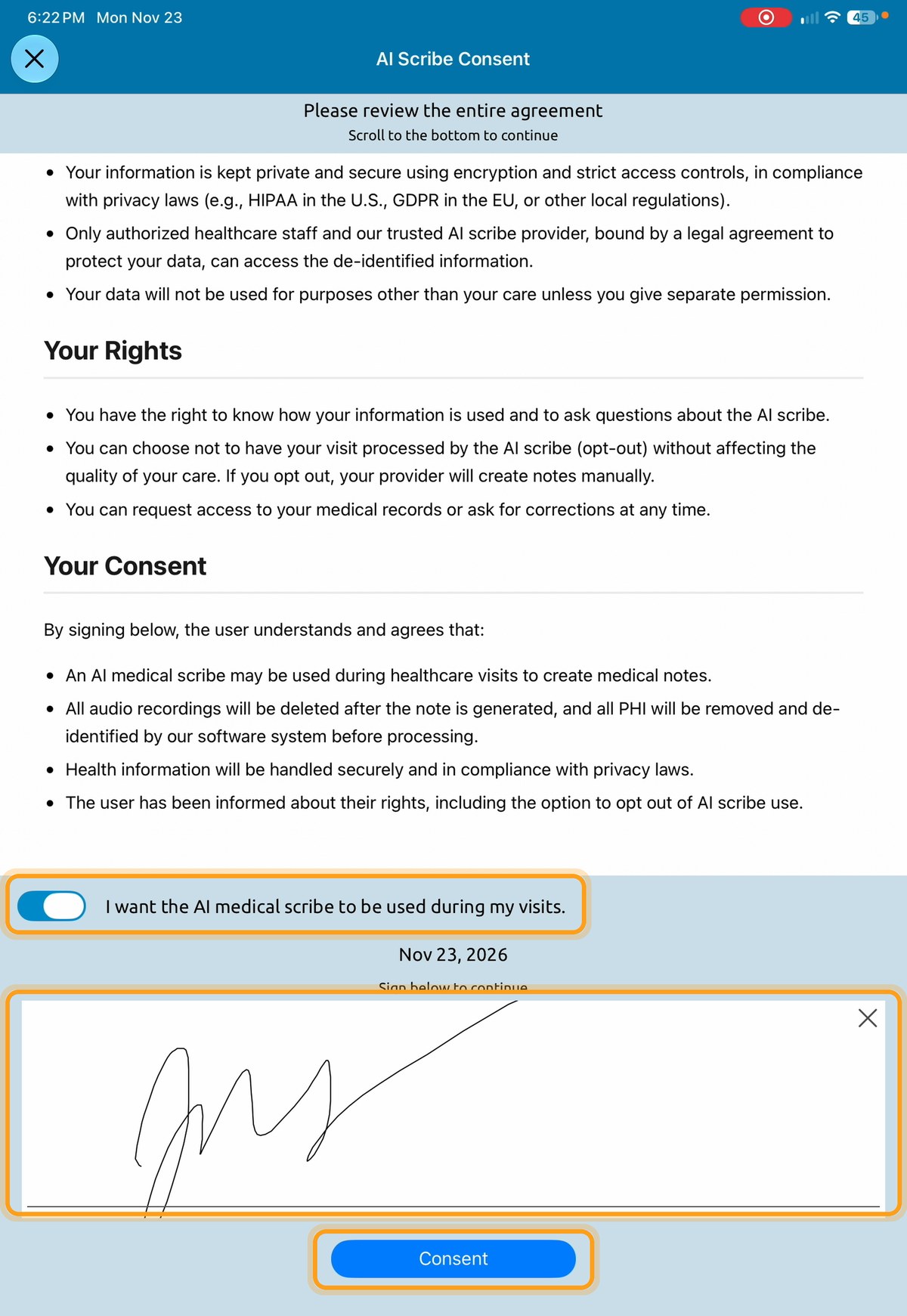
If nothing happens when they tap Consent, one of the steps is missing: scroll to the bottom of the agreement, turn on the switch, and sign.
The form now shows a check mark and the date it was signed.
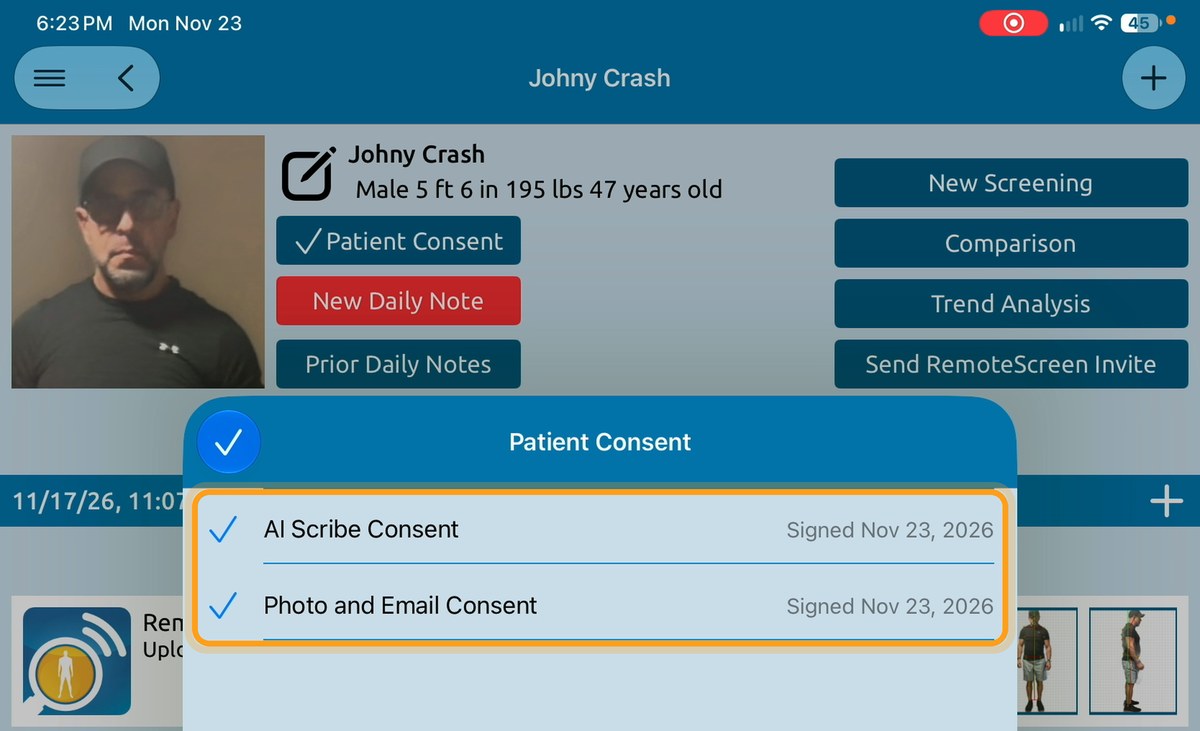
When both forms are signed, the Patient Consent button shows a check mark too.
Where the signed forms are kept
- Each signed form is saved as a PDF with the client's record, including the signature. The PDF is kept exactly as it was signed.
- To view a signed form, tap Patient Consent, then tap the form.
- To remove a signed form, open it and tap the trash icon. The client can then sign again.
- If you have connected Google Drive, a copy of the PDF is added to that client's folder in Google Drive automatically when they sign. See Google Drive Integration with PostureScreen.
Good to know
- Consent rules vary from place to place, so check what applies where you practice. This article is general information, not legal advice.
- The Patient Consent button with both forms is in PostureScreen for iOS, version 16.5 and later.
- More about the note feature: AI Scribe SOAP Notes – Narratives – PostureScribe.AI.
- Questions? Contact PostureCo support.
Related articles
-
 PostureScreen for iPad & iPhone
Patient Summary Emails with PostureScribe.AI
How to Send Patient Summaries as an Outgoing Email This article explains how to complete a patient’s assessments and history, review and…
Video · 2:532 min read
-
PostureScreen for iPad & iPhone
PostureScribe.AI: Custom AI Prompts for SOAP Notes
This tutorial explains how to create a custom prompt using an AI tool within the PostureScribe.AI module in PostureScreen, how to add it…
Video · 12:024 min read
- Knowledge Base AI Scribe SOAP Notes – Narratives – PostureScribe.AI Introduction to PostureScribe.AI: Linking up Google Drive: Your First Note: SOAP Note from Start to Finish: SOAP Note Compare to Prior… 5 videos · 50:16
-
PostureScreen for iPad & iPhone
Advanced Thoraco-Lumbar Tangents and CVA/Skull Gaze Angle
In this tutorial we will review the new assessment update that allows you to turn on additional postural mensuration for both the 2-View…
Video · 15:451 min read
-
PostureScreen for iPad & iPhone
Alternate Backdrop Calibration
In this tutorial, we’ll demonstrate how to calibrate a linear distance using a known reference measurement within the patient’s photo…
Video · 8:262 min read
-
PostureScreen for iPad & iPhone
Anatomical Landmarks for Posture Analysis
In this tutorial we will review the basic overview of the anatomical landmarks for postural assessment using PostureScreen Mobile. Please…
Video · 3:441 min read
Have a question?
Talk to the people who build PostureScreen and PostureRay.
PostureScreen support is by email. Live PostureRay support runs Monday through Friday, 9 AM–5 PM Eastern (excluding U.S. holidays).