





How to Integrate 3D Practice Animation Library with PostureScreen and use in patient reports
On this page 9 sections
Summary
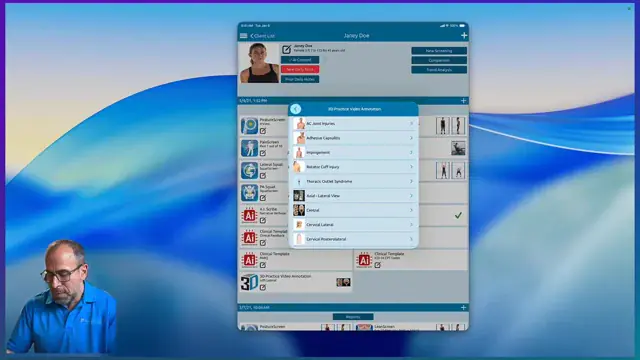
In this tutorial we will review how to first link your 3D Practice account with PostureScreen so you can download animations to PostureScreen for easy patient education.
 5:39
5:39
Step 1: Open the integration settings in Posture Screen 0:00#
- Start in Posture Screen and open Settings.
- Go to Web Exercises → EHR Integration.
- Find 3D Practice in the integration options.
- If you do not already have a 3D Practice account, you can contact them from this area and even start a free trial.
Step 2: Sign in and connect your 3D Practice account 0:33#
- Enter your 3D Practice username/email.
- Enter your password.
- Click Connect to 3D Practice.
- Posture Screen will download the content needed to use the 3D Practice animations inside the app.
Step 3: Browse the 3D Practice animation catalog 1:18#
- After connecting, go to Movies to browse the available animation catalog.
- You can review the different educational animations available for patient use.
- For more content, the transcript notes that 3D Practice’s web-based system has even more options.
Step 4: Add a 3D Practice animation to a patient education session 1:37#
- Open a patient account.
- Choose to add a new education item and select 3D Practice video animation.
- Pick the animation you want to use, such as a left lateral disc herniation.
- Open the animation and prepare it for capture.
Step 5: Annotate the animation to highlight key findings 2:02#
Turn off the grid for a cleaner view.
Scroll through the animation to the frame you want to explain.
Use drawing tools to add:
- Arrows to point out structures or motion
- Circles to emphasize areas of concern
Adjust the size and placement of the annotations as needed.
Click Capture to save the annotated frame.
Step 6: Repeat the process for additional animations 2:48#
- Add another 3D Practice animation the same way you would add another exam item.
- Select a different topic, such as ligamentous laxity at D1 on flexion.
- Turn off the grid again and scroll to the most relevant frame.
- Use the annotation tools to mark the important anatomy or motion.
- Change pen color or tip size if needed, then click Capture.
Step 7: Generate and email a patient report with the captured images 3:55#
- Return to the report workflow.
- Generate a two-view PDF report.
- Choose to email the PDF to the patient.
- Use the customized outgoing email template from Posture Screen AI.
- Click Send.
Step 8: Show the patient how the emailed PDF includes playable animations 4:22#
- Open the email as the patient would receive it.
- View the attached PDF.
- The PDF contains the usual report content plus the captured images.
- When the patient clicks an image, it plays the animation.
- This makes it easier for patients to understand and share the findings with family members.
Step 9: Use the integration for patient education anytime, anywhere 5:04#
- The main benefit is being able to educate patients on the fly during screenings or appointments.
- You can create reports that include stop frames from animations.
- This makes patient education more visual, interactive, and memorable.
- For more information, visit 3dpractice.com or contact support@posturescreen.com with questions.
Related articles
-
 PostureScreen for iPad & iPhone
3D Practice Integration with PostureScreen
Tutorial forthcoming. Reach out to Support@PostureScreen.com via email if you have any questions.
Article
PostureScreen for iPad & iPhone
3D Practice Integration with PostureScreen
Tutorial forthcoming. Reach out to Support@PostureScreen.com via email if you have any questions.
Article
-
PostureScreen for iPad & iPhone
Advanced Thoraco-Lumbar Tangents and CVA/Skull Gaze Angle
In this tutorial we will review the new assessment update that allows you to turn on additional postural mensuration for both the 2-View…
Video · 15:451 min read
-
PostureScreen for iPad & iPhone
AirPlay Screen Mirroring
Please see the following link for AirPlay and Screen Mirroring
Article
-
PostureScreen for iPad & iPhone
Alternate Backdrop Calibration
In this tutorial, we’ll demonstrate how to calibrate a linear distance using a known reference measurement within the patient’s photo…
Video · 8:262 min read
-
PostureScreen for iPad & iPhone
Anatomical Landmarks for Posture Analysis
In this tutorial we will review the basic overview of the anatomical landmarks for postural assessment using PostureScreen Mobile. Please…
Video · 3:441 min read
-
PostureScreen for iPad & iPhone
Annotating Movement Screen Videos
In this tutorial we will review how to annotate a Lateral SquatScreen Assessment. Many people already know we can video a generic movement…
Video · 3:401 min read
Have a question?
Talk to the people who build PostureScreen and PostureRay.
PostureScreen support is by email. Live PostureRay support runs Monday through Friday, 9 AM–5 PM Eastern (excluding U.S. holidays).