






Downloading and Processing a RemoteScreen Posture Assessment
On this page 3 sections
Summary
In this tutorial we will review how to process a RemoteScreen client upload in PostureScreen.
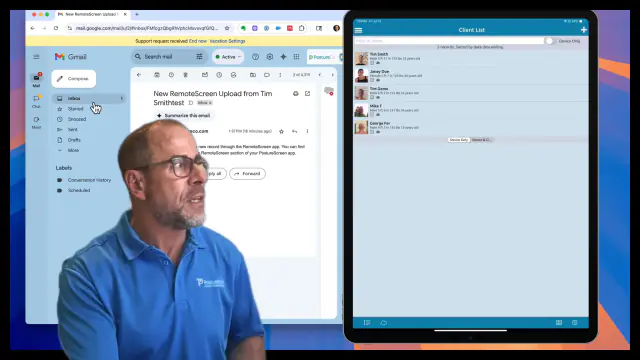 5:47
5:47
📲 How to Process a RemoteScreen Submission in PostureScreen (iOS)#
RemoteScreen is the companion app used by your patients or clients to submit posture images securely to your PostureScreen Cloud account for virtual assessments. This guide walks you through how to process those submissions in the PostureScreen iOS app.
🔒 Requirements#
Before getting started:
- You must have an active unlimited assessment license.
- You must be subscribed to the PostureScreen Cloud Backup Service.
- Ensure you are using the Apple Mail app for sending invitations.
✅ Step-by-Step Instructions#
Step 1: Send a RemoteScreen Invitation#
Open the PostureScreen app on your iPhone or iPad.
Tap RemoteScreen from the main menu.
Tap Send RemoteScreen Invitation.
Enter your client’s email address (e.g., info@postureco.com).
Tap Send. The email will include:
- Links to download the RemoteScreen app on iOS or Android.
- Your provider Cloud ID so they can link to your account.
💡 Tip: Consider creating a short instructional video branded to your clinic that explains the process for your clients.
Step 2: Wait for the Client to Submit#
- Your client will use the RemoteScreen app to take posture photos.
- When they submit their assessment, you’ll receive an email notification titled:
“New RemoteScreen Upload – [Client Name]”
🔍 Check your spam or “Updates” folder if you don’t see the email.
Step 3: Download the Submission#
- Open PostureScreen and go to RemoteScreen.
- Locate the client submission from the list (sorted by name/date).
- Tap Download next to the client’s name. It will import into your local device.
Step 4: Process the Assessment#
Tap on the downloaded client entry (e.g., “Tim Smith Test”).
Review their posture photo. You can:
- Choose to keep or remove the background.
- Tap Start Digitization to run the posture analysis. PostureScreen (iOS) – Your First 2-View Posture Assessment
Adjust landmark points as needed—just like an in-office exam. Editing or moving automatically applied computer vision determined digitized points in PostureScreen
Step 5: (Optional) Merge with Existing Case#
If the client has had prior assessments:
- Merge the new RemoteScreen case with the existing in-office case to generate comparative reports.
- How to Merge: Merging Clients, Bulk Delete Clients
Step 6: (Optional) Run Movement or Body Composition Screens#
From the same RemoteScreen photos:
- Tap LeanScreen to process a remote body composition assessment. Details on LeanScreen from a PostureScreen: PostureScreen then LeanScreen Same Images
- Or choose to run a movement screen if the client submitted video.
📌 Separate tutorials are available for those features.
Related articles
-
 RemoteScreen
Downloading and Processing a RemoteScreen Movement Screen (Video)
In this tutorial we review how to download a client’s video for their movement assessment.
Video · 2:44
RemoteScreen
Downloading and Processing a RemoteScreen Movement Screen (Video)
In this tutorial we review how to download a client’s video for their movement assessment.
Video · 2:44
-
RemoteScreen
RemoteScreen – How to set up and use.
RemoteScreen is a companion application for clients/patients to securely share their photos and videos to their healthcare or fitness…
Video · 3:561 min read
-
RemoteScreen
RemoteScreen Email Campaign Ideas
In this tutorial we review just some basic ideas we recommend you use if you are doing an email campaign to market for your virtual…
Video · 4:561 min read
-
RemoteScreen
RemoteScreen Invitations – Sending Client RemoteScreen Code
In the following tutorial we will review how to invite both an established client / patient and non-established client / patient to your…
Video · 2:281 min read
-
RemoteScreen
RemoteScreen Setup and First Use for Client/Patient
Learn how to set up the RemoteScreen app on your iPhone for virtual posture assessments! 📲 This easy-to-follow tutorial walks patients…
2 videos · 13:074 min read
-
RemoteScreen
RemoteScreen Troubleshooting
If you have a client stating they sent you an exam through RemoteScreen and you have not received it, please follow these steps.
2 min read
Have a question?
Talk to the people who build PostureScreen and PostureRay.
PostureScreen support is by email. Live PostureRay support runs Monday through Friday, 9 AM–5 PM Eastern (excluding U.S. holidays).